Produkt - Ceník
Informace Partnerství Kontakt
Uživatelský manuál - přehled témat

Multi-zone layouts
ScreenManager allows you to create a multi-zone layout for a screen in various ways.
When defining a layout for a playlist, you can create multiple zones and choose which content should play in each zone. This enables you to display video ads in the main zone and show current time & news in the "footer" zone, or showcase a restaurant menu in the main zone while displaying a queue management system on the side.
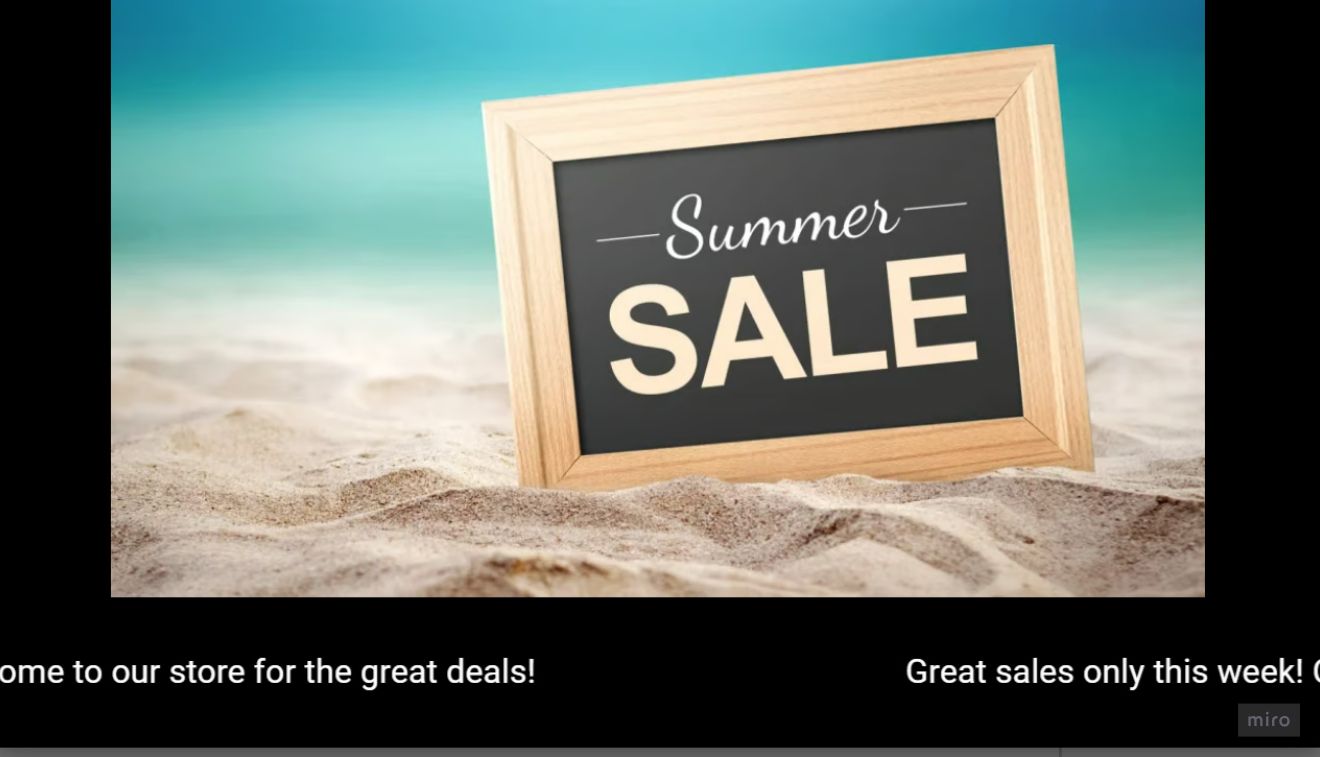
Let's learn how to use layouts with this example. The result will look like this: the main image and a running line at the bottom.
Step 1: Create or Edit and existing Playlist
- Log into your ScreenManager account and navigate to the Playlists section1.
- Click on Create Playlist2 and specify the aspect ratio. For a screen with a 16:9 aspect ratio, set the ratio of the playlist to 16:9.
- Or choose one of the existing Playlists and click on the pencil icon3 to edit it.

Step 2: Select a Playlist Layout

Use the panel below the name of the playlist1 to open up the layout menu. It allows you to choose a predefined layout from the available options or customize an existing layout to your preferences. Click on Change layout2 button to start.
Step 3: Select Layout from the Library
Each layout consists of zones where content is displayed independently. Like in our example, we are going to have a layout with a main media zone1 and a smaller zone for the running line2. In our example, we are going to use this layout3.
Click on Select4 to start using the preferred layout.

Or click on Customize5 or Create custom layout6 to create a layout that will suit your needs. A new menu will open, where you can define all settings for the new layout. Click Save to add it to the library.

Step 4: Add Content to Zones
Click on each zone within the selected layout (or on the Area button near it) to start adding content to it. Choose the 1st zone for now.

1 Use Media management menu select the desired content to add to the zone.2 Choose between Media categories to add to the playlist by clicking on the + icon3 next to them. Or Upload new media4 from your device.
We are going to add the Summer sale image5 to the first zone.
Step 5: Add a Running line
In order to add a running line to be bottom screen as displayed on the image below, we need to create a Running line app first.

- Firstly, change the currently edited zone of the layout. To do so, click on the Area 2 near it or the area itself.

2. Then switch to the Apps category1 and then click on Create app2.
- Follow the steps from the Running line App article to create it.
- If you have already created a running line app , you can instead add it from the Media list by clicking on the + near it3.
- You can learn more about Apps here.
Step 6: Preview or Publish Playlist
Click on the Preview button to check the layout and content placement.
Once satisfied with the result, publish the playlist to your screen for display.

Tips and tricks
- Utilize nested playlists (a playlist inside another playlist): Use nested playlists to easily manage the content of the main zone of the layout.
- Use the 'Stretch' option in media fit settings: to ensure that the media contents of your playlists cover the entire area of the zone.
- Do not play multiple videos simultaneously without testing if your device can handle it. Cheaper devices might have performance issues playing more than one video at a time. Also, note that the video may be "choppy."
By following these steps, you can efficiently manage multi-layout screens in ScreenManager Digital Signage CMS, ensuring dynamic and engaging content delivery to your audience.
Související články

- info@screenmanager.tech
- +420 604 487 886 (WhatsApp)
DIČ: CZ08543682
Kurzova 2222/16 155 00
Praha