Produkt - Ceník
Informace Partnerství Kontakt
Uživatelský manuál - přehled témat

How to set up and pair any Android TV with a Digital Signage player
1. Choose hardware
You will need a screen and a player.
The screen can be any TV, digital display or monitor.
We recommend getting a player from us, but any Android TV box will also work well.
2. Install the ScreenManager App
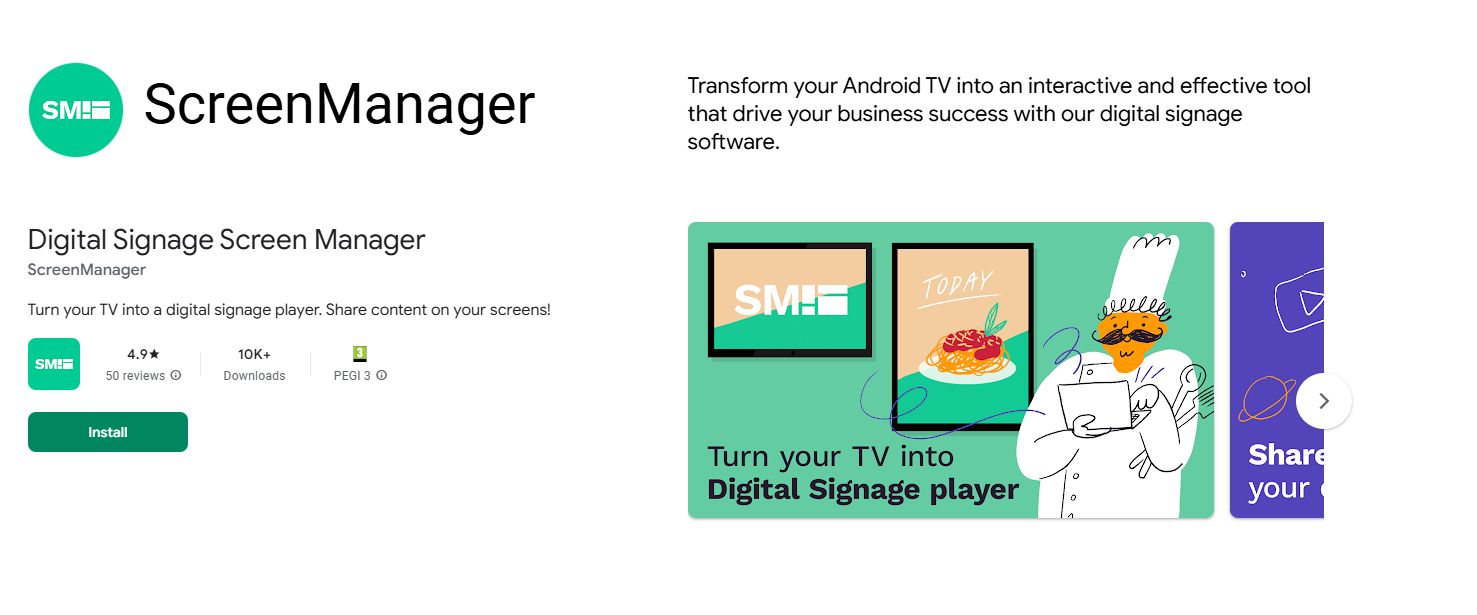
To start presenting content, you need to install our ScreenManager App on your Android TV device. If you have our player already installed, you can skip this step.
1. Power on the TV
Power on your Android TV device and connect it to your screen and the internet.
2.Open Google Play
Navigate to the Google Play Store from your device's home screen.
If you do not have access to Google Play, you will need to install the application with a help of a manual installation package (APK).
Please contact us in such a case.
3.Search for "ScreenManager"
Use the search bar to search for "ScreenManager" (without spaces).
4.Install the App
Once you find the ScreenManager App, select it and click "Install".
3. Pair the Device with your Account
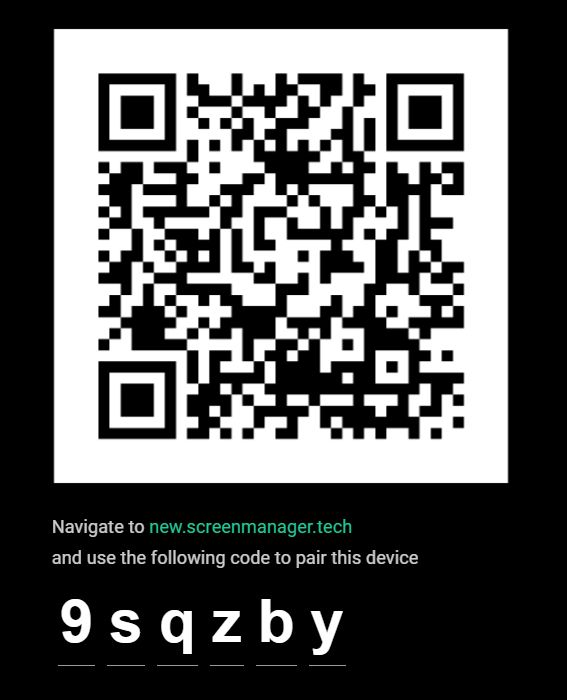
To enable to manage and schedule content remotely, you will need to pair your ScreenManager App with our Cloud Content Management System.
Open the ScreenManager App on your Android TV device.
You'll see a pairing code displayed on the screen.
Log into your ScreenManager account.
Then go to the Screens1 section and click on the New Screen2 button.

Enter the pairing code3 you see on your Phillips TV and click Pair screen4.

4. Set up your screen
Name your screen and choose its rotation

That's it! You are ready to start presenting content on your screen.
5. Present Content on the Display
With your device paired and ready to go, you can start presenting your content.
Navigate to Media page and upload images, videos or PDF presentations. To create more complex visuals or use third-party integrations such as Instagram or RSS feed, navigate to Scenes.
Publish content to the paired displays with a single click.
